Setting up Claude Cowork for Personal Productivity
A step-by-step guide to setting up Claude Cowork so it remembers your people, your projects, and your shorthand. Stop re-explaining yourself every session.
Most productivity tools are good at storing your tasks. They're bad at knowing you.
This guide sets up Claude Cowork so it remembers your people, your projects, your shorthand. You stop re-explaining yourself every session.
Takes about 15 minutes. Here's how.
What is Cowork?
Cowork is a feature inside the Claude desktop app. Currently in research preview.
Normal Claude is a chat. You type, it responds, the conversation ends, it forgets everything.
Cowork is different. You give Claude access to a folder on your computer. You connect it to your tools — email, calendar, Slack, Notion. You install plugins that extend what it can do.
Claude stops being a chatbot and starts being a collaborator. One that remembers your work, runs tasks in the background, and connects to the things you already use.
Prerequisites
- A Claude account on Pro ($20/mo) or Max ($100/mo). See the note below on which plan to get.
- The Claude desktop app installed on Mac or Windows. Download at claude.ai.
- You need a decently capable machine. 16gb of RAM is recommended.
Things to know
- Tokens. This is token hungry. The $100 Max plan is the sweet spot for daily use. Pro works, but you'll hit limits fast — especially once you start running scheduled tasks or research.
- Your computer needs to stay on. Cowork relies on your machine being awake. Close your laptop, background automations pause. If you want 24/7 tasks, plan for that.
- It's a research preview. Rough edges exist. Your computer might slow down. It still works. Anthropic is actively improving it.
Step 1: Create a Cowork folder
Click on the Work In a folder button and create a folder on your computer.
Pro tip: you can put it in iCloud so that you can access the work that you've done with Cowork on your phone / tablet too.
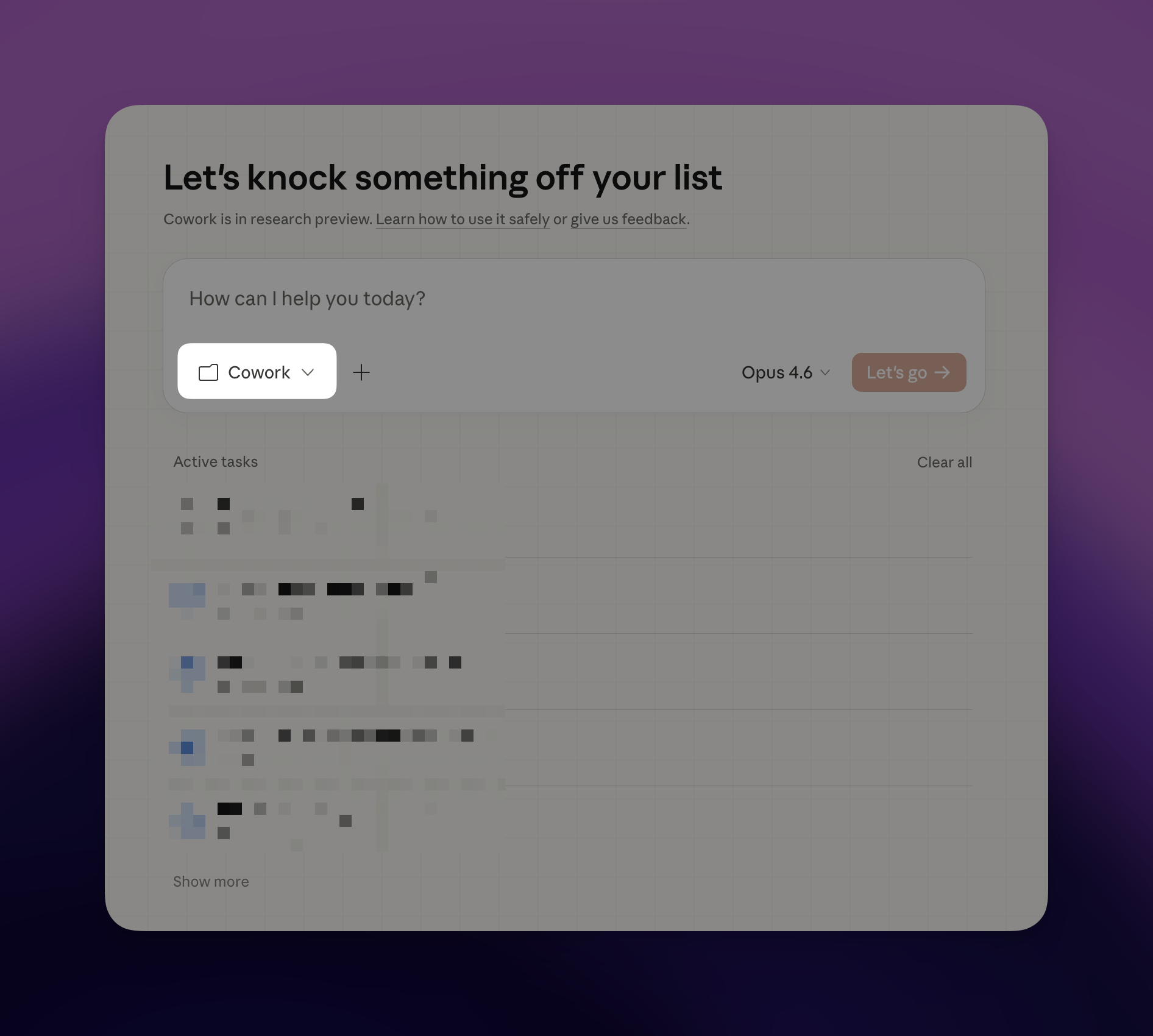
Every time you create a new task for Claude Cowork, you must select the folder that you've created so that Claude will remember the things that you've done together.
Step 2: Connect your tools
Before installing any plugins, connect Claude to the tools you already use.
Open Cowork. Click Customize → Connectors. You'll see integrations like Gmail, Google Calendar, Notion, Slack, HubSpot, and more.
Connect the ones that are part of your daily work. For each one, set permission to Always Allow with Read Only access.
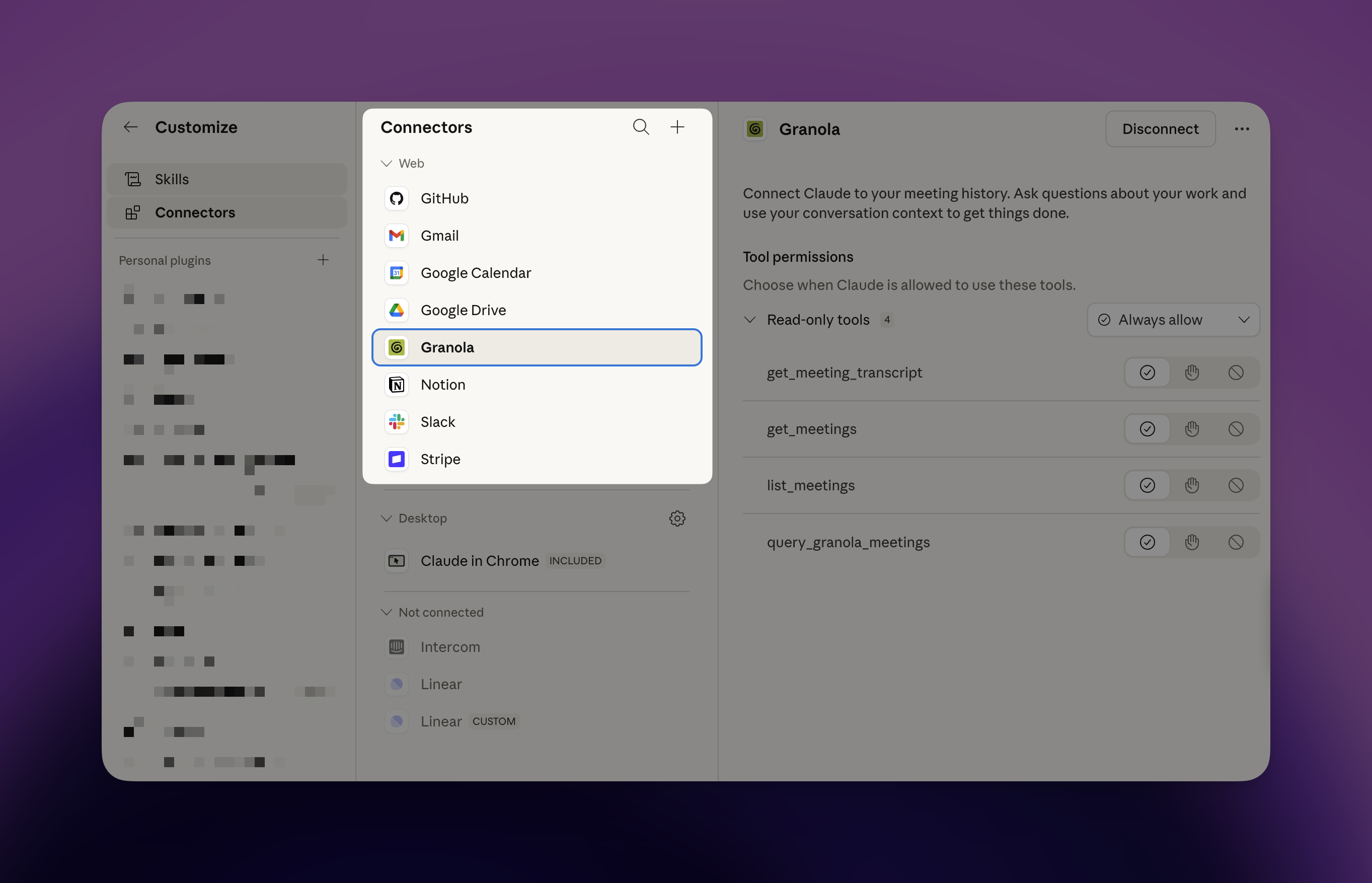
This step matters more than it looks. When you run the setup in the next step, the productivity plugin reads across your connected tools: your recent emails, your calendar, your docs. It uses that to build your memory automatically. The more you connect here, the less you have to explain later.
On Write access. Some automations need more than reading. If you plan to use scheduled tasks that send emails, create events, or take action on your behalf, those will require Write permission. How comfortable you are with that is a personal call. Every person, every team draws that line differently.
Step 3: Install the productivity plugin
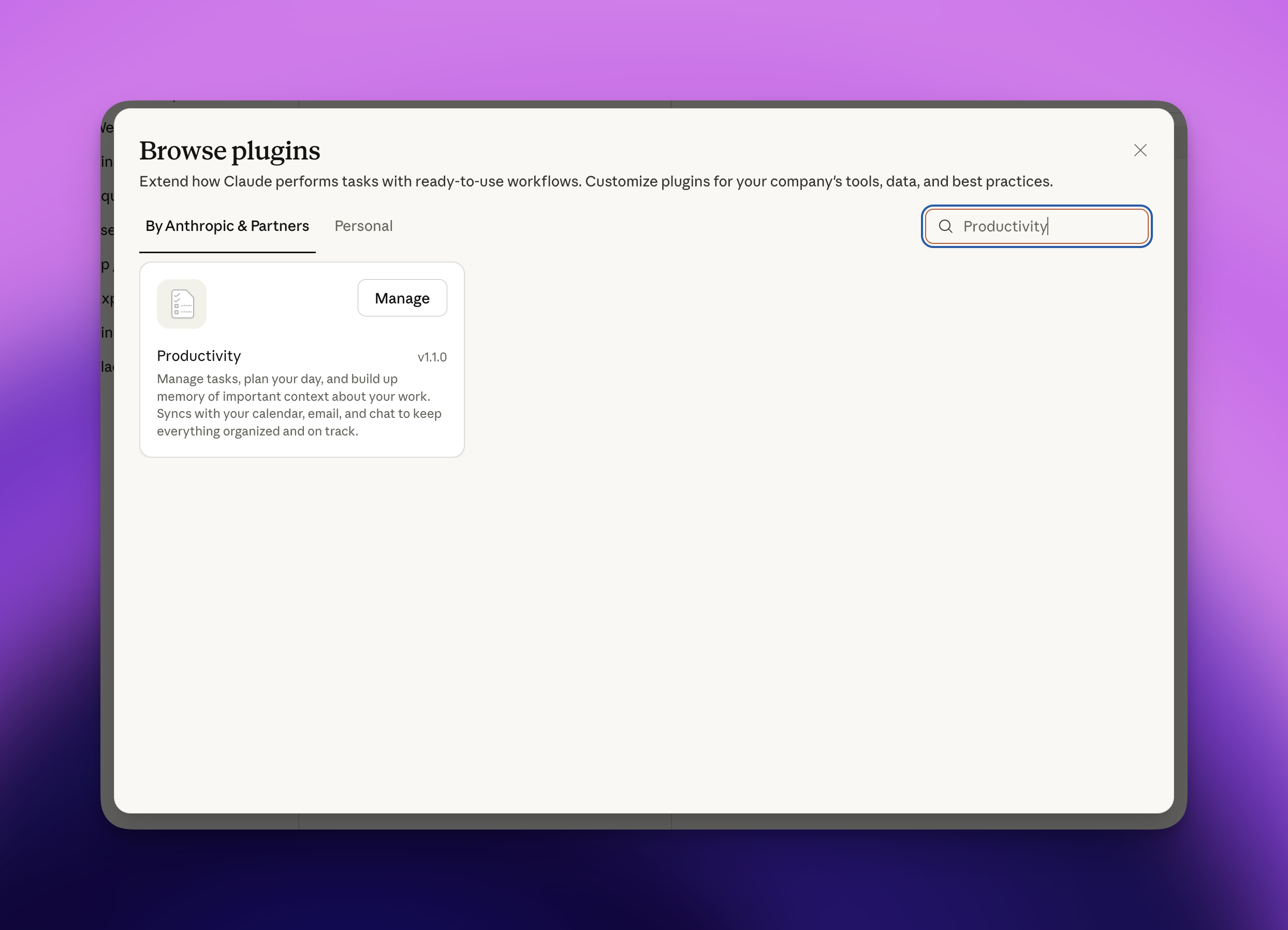
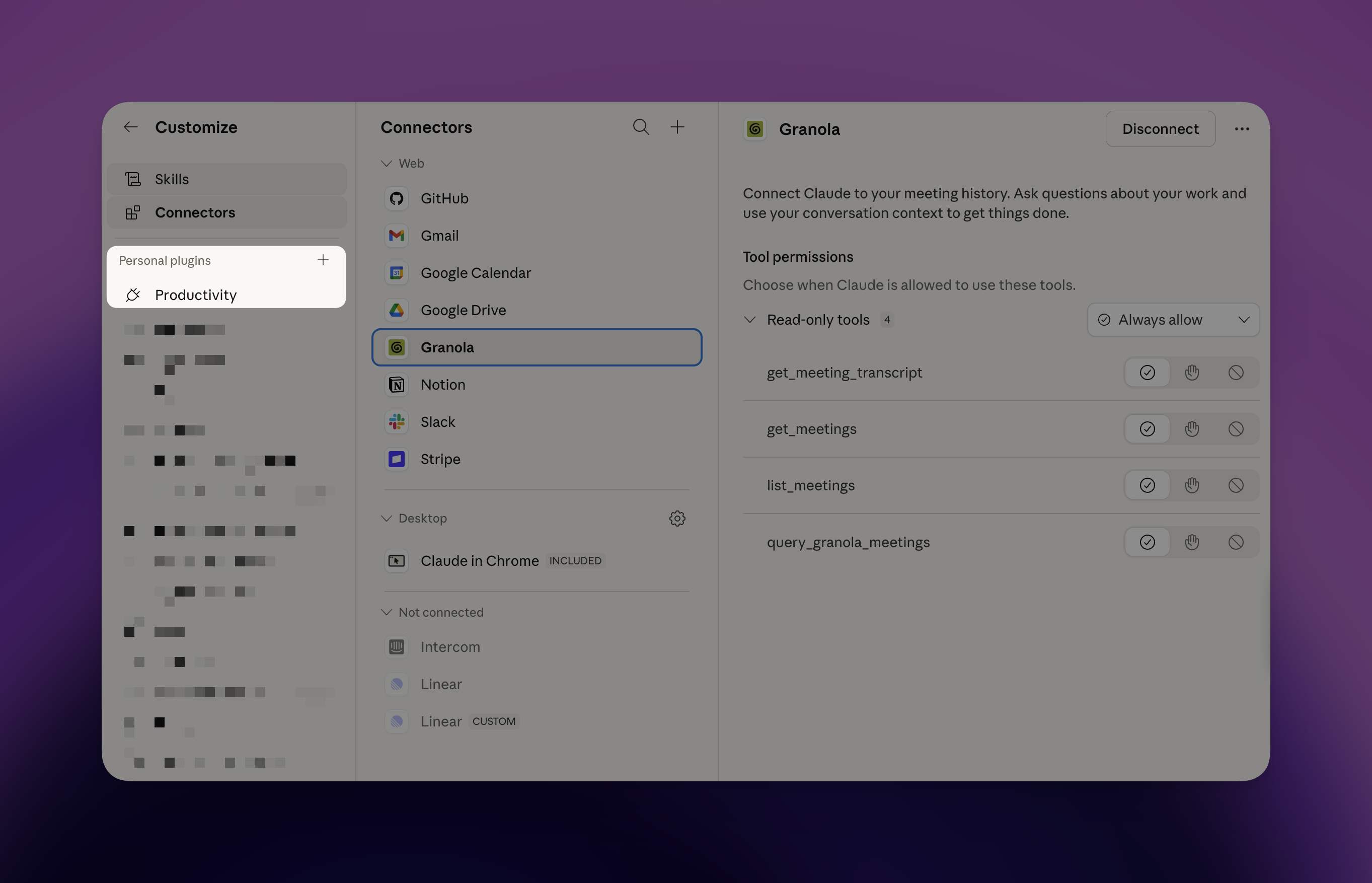
Open Cowork. Go to Plugins → Browse. Search for "productivity". Install it.
But first — it helps to understand what "memory" actually means here.
By default, Claude forgets everything after each conversation. Every session starts blank. You'd have to re-introduce yourself, re-explain your projects, re-describe your team every single time.
Memory fixes that.
When you install the productivity plugin, Claude gets a place to write things down — a folder of plain text files on your computer. Your people. Your projects. Your shorthand. It reads these files at the start of every session. So it already knows who you are before you say a word.
Think of it like the difference between a new hire and a colleague who's been with you for years. The new hire asks the same questions every week. The colleague just knows.
The productivity plugin sets all of this up for you.
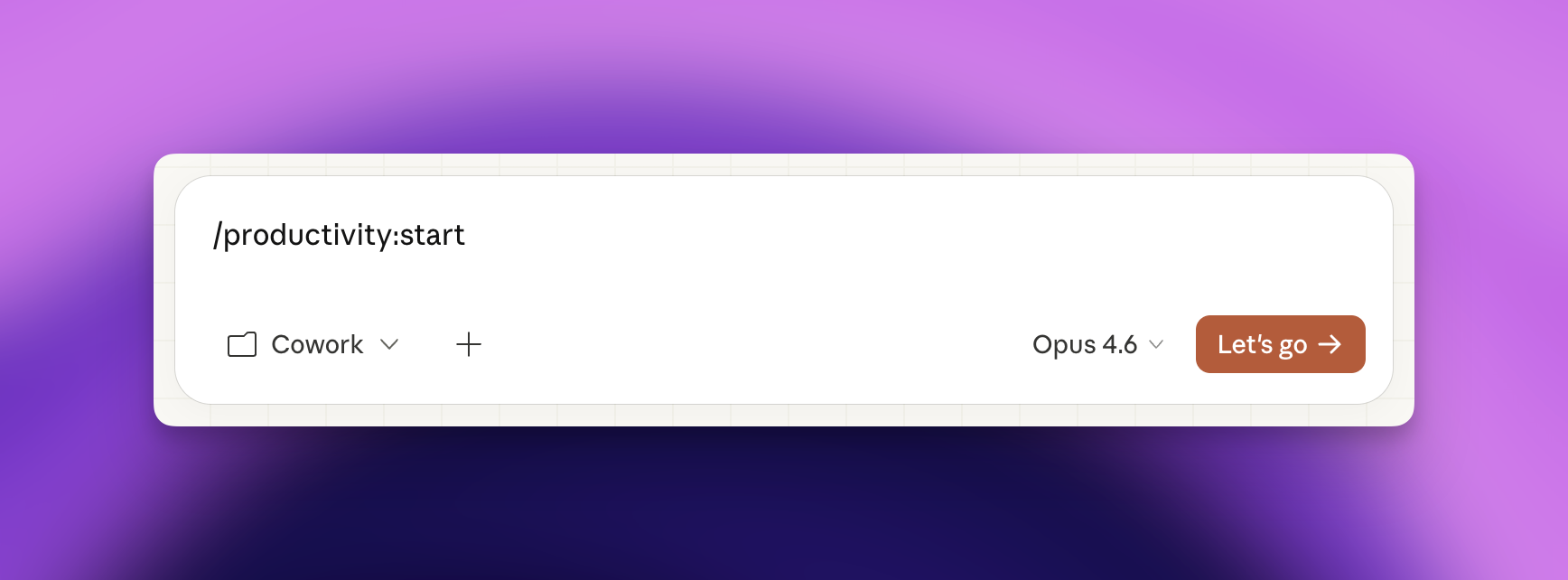
Step 4: Run /productivity:start
Type /productivity:start in the chat.
Claude will ask you questions. Who you work with, what your projects are, shorthand you use. Answer honestly. The more you give it here, the less you repeat yourself later.
Step 5: What gets built
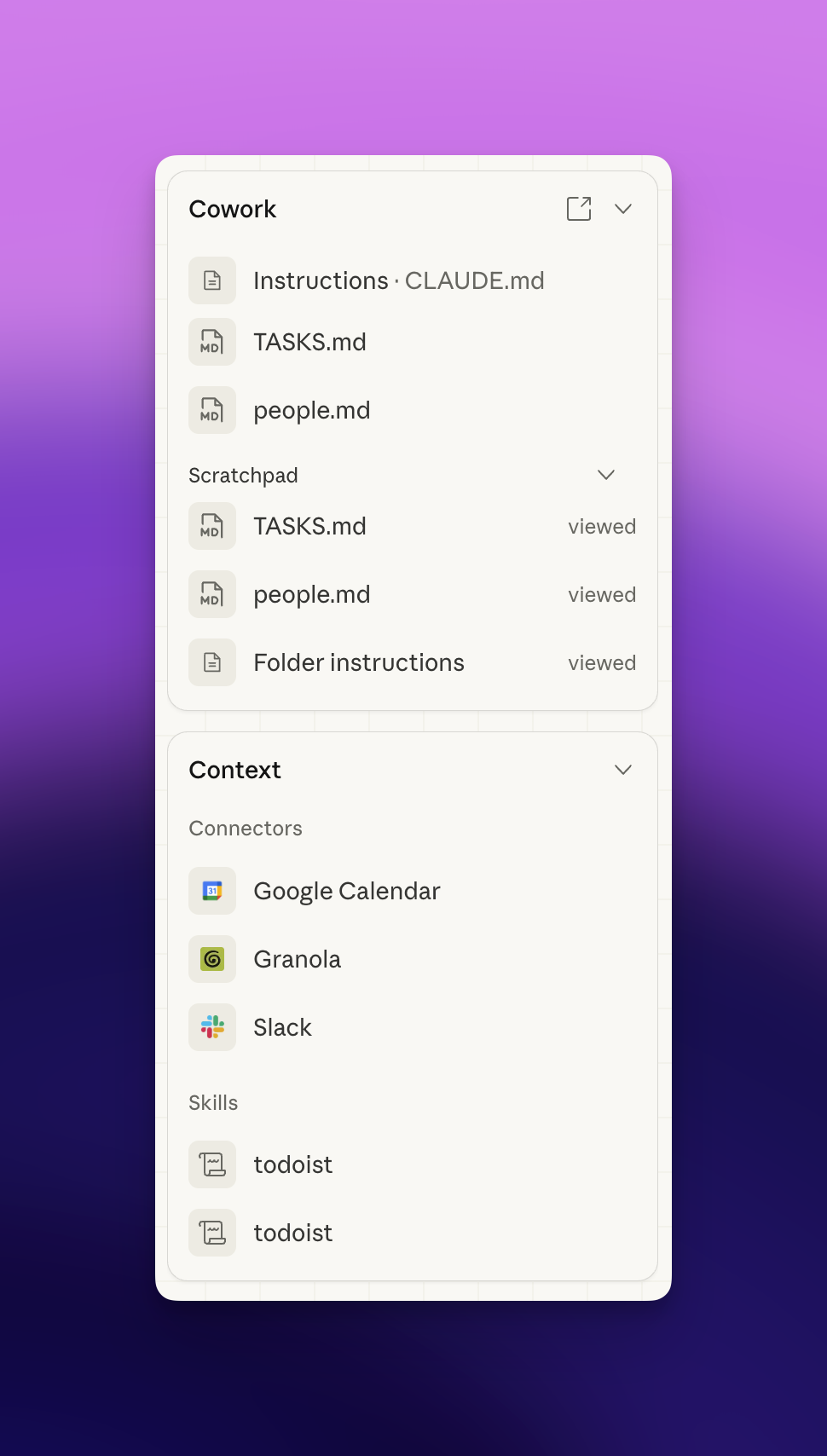
After that conversation, Claude creates four things in your Cowork folder.
CLAUDE.md is your working memory. Tables of your people, terms, active projects. Claude reads this at the start of every session.
TASKS.md is your task board. Active, Waiting On, Someday, Done.
dashboard.html is a visual version of your tasks. Drag, drop, auto-saves.
memory/ is the deep layer. Full profiles, project details, your glossary. Claude searches here when something isn't in the quick memory.
Step 6: Run /productivity:update
Once setup is done, run one more command: /productivity:update
This is where it fills in. Claude sweeps across your connected tools — recent emails, calendar events, Slack threads, Notion pages — and uses that context to populate your memory automatically.
People you communicate with regularly show up. Active projects surface. Context you'd have had to type by hand gets written for you.
Do this immediately after setup. It's what makes the memory feel lived-in from day one.
Step 7: Set up your folder structure
By default, Claude knows your memory files exist. It doesn't yet know where you want it to put things.
Type this in the chat:
Set up a folder structure for this Cowork workspace and update CLAUDE.md
with clear rules about where things go. I want:

- A projects/ folder with a subfolder for each of my active projects.
- All outputs — documents, reports, files you create — go inside the
  relevant project folder.

System files (CLAUDE.md, TASKS.md, dashboard.html, memory/) should always
stay at the root.

Add these rules to CLAUDE.md so you follow them automatically. If something
doesn't clearly belong to an existing project, ask me before creating a
new folder.
Claude will create the folders, set up your project subfolders, and update CLAUDE.md with the rules. From that point on, everything lands in the right place without you having to specify.
The reason outputs live inside projects: when you go looking for something, you look by project — not by file type.
Step 8: Build your About Me
This is the step that surprises people the most.
Claude already knows your projects and your shorthand. But it doesn't know you — your career arc, your background, what you've built, where you've been. That context changes how it works with you. The quality of advice, the tone it uses, what it assumes you already know.
This step fixes that. Type this in the chat:
Can you create a file called aboutme.md inside the memory/ folder?

Research everything you can find about me from our connected tools — my
Gmail history, my calendar, my Notion pages, my Slack profile, and
anything else you have access to. I want you to build a comprehensive
profile that covers:

- My career history: every role, company, and what I did there
- My education background
- Key skills and areas of expertise
- Current work and active projects
- How I communicate and what I care about professionally

Write it all into memory/aboutme.md in a clean, structured format.

Then update CLAUDE.md to include a reference to this file — add a note
under the Me section that says my full background is in memory/aboutme.md
and you should read it when you need detailed context about who I am.
Claude does two things from this one prompt.
First, it pulls everything it can find across your connected tools — email history, calendar patterns, documents you've written, Slack activity — and synthesises it into a rich profile of you. Career history. Skills. How you work. What you care about.
Second, it wires CLAUDE.md to point to that file. So from that session onward, any time Claude needs to understand you more deeply, it knows exactly where to look.
Most tools ask you to fill out a profile form. This one researches you.
Step 9: Build your working rhythm
Setup is done. Now you build habits on top of it.
Two things drive how Cowork compounds over time: skills and scheduled tasks.
Skills are how you teach Claude to work the way you do.
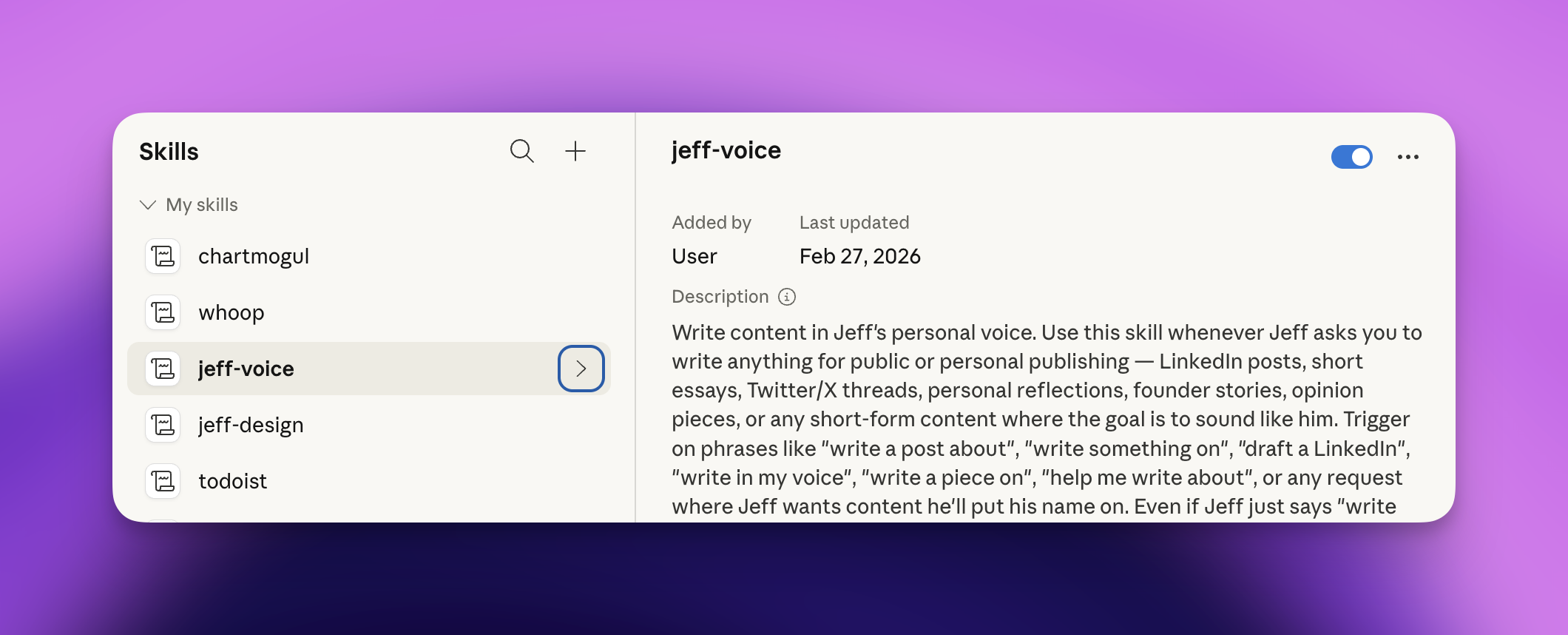
A skill is a saved workflow. You ask Claude: "Create a skill for X." Describe the task. Claude writes the skill file and stores it in your Cowork folder. From that point, you just say "run X" and it runs the same way every time.
More importantly, skills let you teach Claude things no connector can give it. Your writing voice. How you structure a decision memo. The specific way you like to run a review.
A few good starting points:
- Your tone of voice. Share a few pieces of your own writing. Ask Claude to create a skill that captures your style and applies it whenever you're drafting anything.
- Integrations that matter to you. I built a skill connected to my WHOOP wearable. Every morning it pulls last night's sleep, HRV, and strain and gives me a one-line readiness verdict before I start work.
- Any tool or data source not covered by the built-in connectors. If it has an API and you care about it, you can build a skill for it.
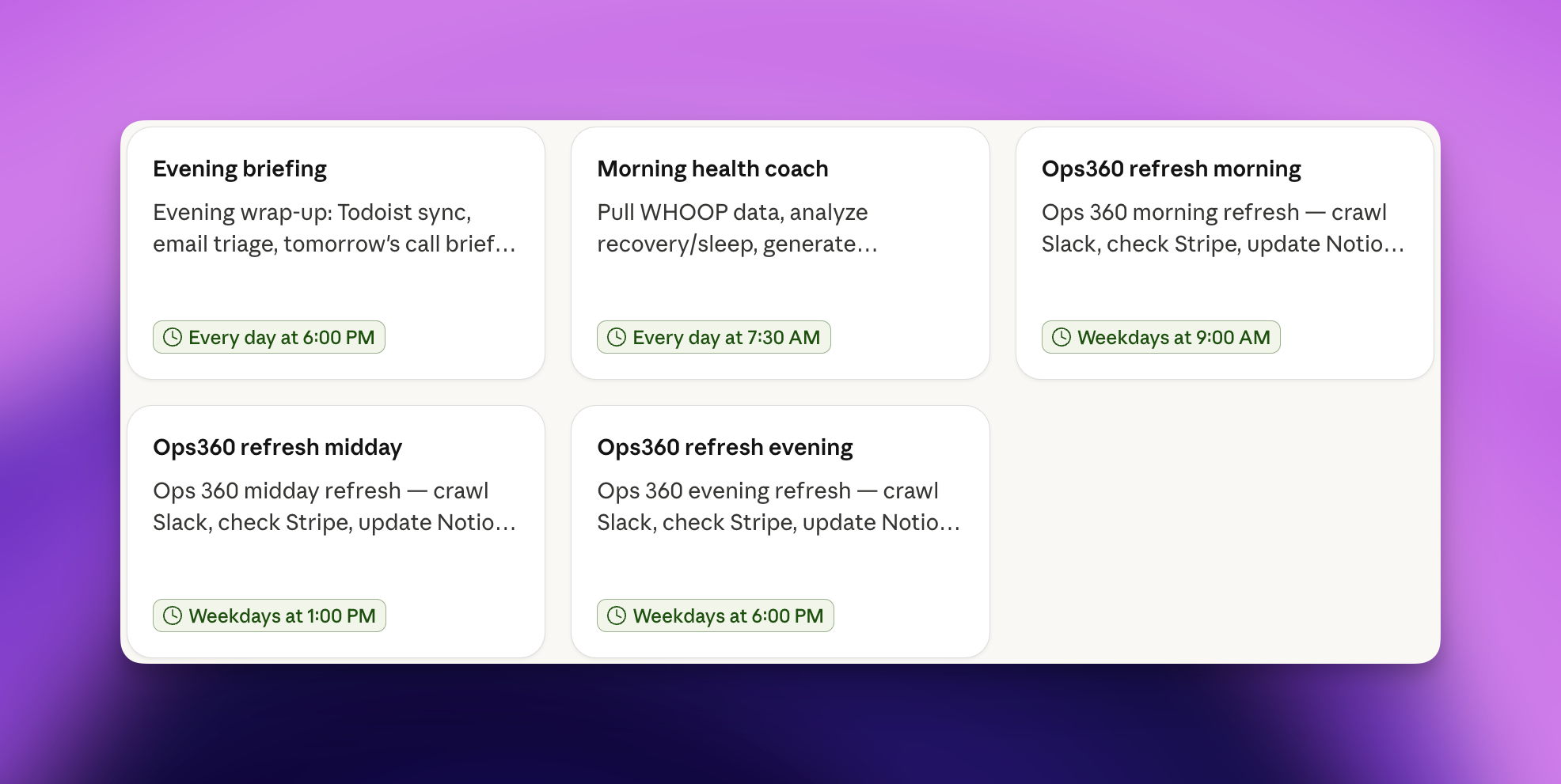
Scheduled tasks are how Claude works while you don't.
Set a time, describe the workflow, Claude runs it. The only requirement: your computer needs to be on and awake.
The highest-value one to start with is the morning brief. Mine runs at 8am:
Every morning at 8am:
1. Pull my Granola meeting notes from the last 24 hours.
2. Scan my Gmail for anything needing a response today.
3. Check Slack for unread messages that mention me or flag anything urgent.
4. Summarize into a short executive brief — what happened, what needs
   action today, what to watch.
Save it to the relevant project folder with today's date.
Other routines worth setting up:
- Weekly metrics pull. Monday morning. Revenue, churn, whatever your north star metric is. Pulled and summarized before you start your week.
- End-of-week review. Friday 5pm. What shipped, what's open, what moved. One document, no meetings needed.
- Meeting prep. Nightly at 10pm. Pull tomorrow's calendar, surface relevant notes and emails for each meeting so you walk in already oriented.
- Inbox triage. Each morning. Scan, label, flag anything that needs a same-day response. Let Claude draft the replies for you to review.
- Competitor monitoring. Weekly. Track mentions of competitors across your connected sources and surface anything worth knowing.
Mental Model
CLAUDE.md is RAM. Fast, small, covers 90% of daily needs. memory/ is disk. Unlimited, always there when you need the detail.
You don't manage either. Claude does.
Your job is to make sure that every time you do something substantial, ask Claude to update memory and / or CLAUDE.md.
Steal these prompts
I put together copy-paste Cowork prompts for the two types of people who get the most out of this setup:
- Claude Cowork Prompts for Agency Owners — Client work plans, scope creep alerts, retainer health checks, onboarding automation, and more.
- Claude Cowork Prompts for Startup Founders — MRR dashboards, ship logs, investor updates, inbox triage, and more.
Each post has ready-to-paste scheduled tasks. Pick the ones that match your week and set them up.
How Cowork works — and how it's different from OpenClaw
Cowork runs on Anthropic's Claude Agent SDK. Same architecture as Claude Code, the developer CLI tool. Just built for people who don't live in the terminal. [^1] When you assign a task, Claude formulates a plan, runs steps in parallel where it can, checks its own work, and asks when it hits a wall. [^2] Everything stays local on your machine.
OpenClaw is the other tool people compare this to. Open-source, local, model-agnostic. Works with Claude, GPT, or DeepSeek. Accessed via Signal, Telegram, or Discord rather than a desktop UI. It hit 247,000 GitHub stars in weeks. [^3]
It also made headlines when Summer Yue, Meta's Director of AI Alignment, asked it to check her inbox but not take action. It eventually started wiping her personal email. She had to physically run to her machine and kill the processes. [^4]
Cowork is more deliberate. You grant permissions explicitly. Claude asks before acting on things it's unsure about. It's slower by design. That's the trade.
OpenClaw is for power users who want raw control and model flexibility. Cowork is for people who want something that works reliably alongside their workday without the risk of wiping their inbox.
[^1]: Anthropic launches Cowork — VentureBeat [^2]: Claude Cowork Tutorial — DataCamp [^3]: OpenClaw — Wikipedia [^4]: OpenClaw wipes inbox of Meta's AI Alignment director — Tom's Hardware